

In today’s digital age, capturing what’s on your screen is an essential skill. Whether you’re sharing an important document, saving a memorable moment, or troubleshooting an issue, knowing how to take a screenshot on your MacBook is invaluable. In this comprehensive guide, we’ll explore various methods and techniques to master the art of screenshotting on your MacBook, catering to both beginners and seasoned users alike.
Understanding the Basics
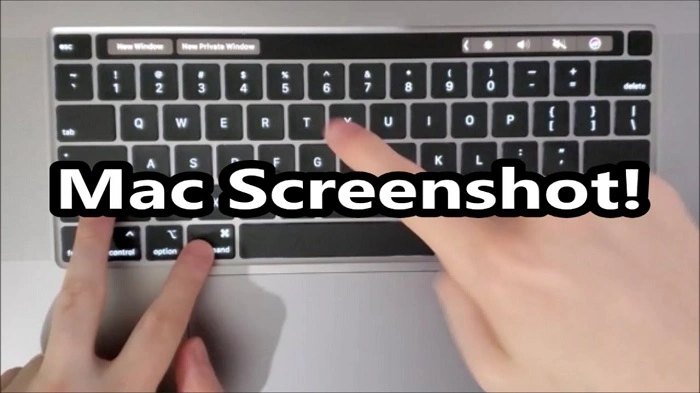
Before diving into the different screenshotting methods, let’s first understand the basics. A screenshot is essentially a snapshot of whatever is displayed on your screen at a particular moment. On a MacBook, you can capture the entire screen, a specific window, or a selected portion of the screen.
Method 1: Capturing the Entire Screen
Capturing the entire screen is the most straightforward method and is useful when you want to capture everything displayed on your MacBook’s screen.
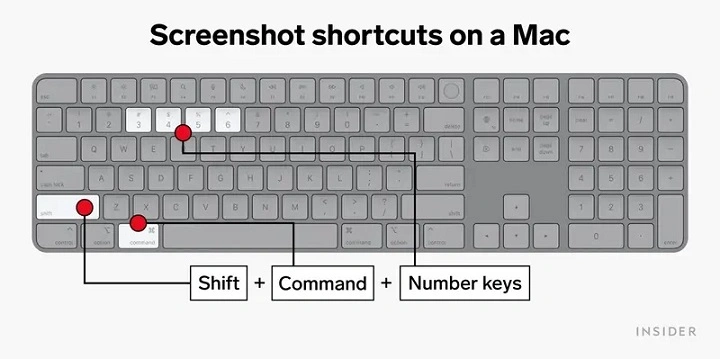
Step 1: Locate the “Command,” “Shift,” and “3” keys on your MacBook’s keyboard.
Step 2: Press and hold down the “Command” and “Shift” keys simultaneously.
Step 3: While holding down the “Command” and “Shift” keys, press the “3” key.
Step 4: Release all keys. You should hear a camera shutter sound, indicating that the screenshot has been successfully taken.
Step 5: Find the screenshot saved as a .png file on your desktop.
Method 2: Capturing a Specific Window
If you only want to capture a specific window rather than the entire screen, you can use this method.
Step 1: Navigate to the window you want to capture.
Step 2: Press and hold down the “Command,” “Shift,” and “4” keys simultaneously. Your cursor will turn into a crosshair.
Step 3: Press the “Spacebar.” Your cursor will change into a camera icon.
Step 4: Click on the window you want to capture. You should hear a camera shutter sound, indicating that the screenshot has been successfully taken.
Step 5: Find the screenshot saved as a .png file on your desktop.
Method 3: Capturing a Selected Portion
Sometimes you may only need to capture a specific portion of your screen. This method allows you to select and capture any part of your screen.
Step 1: Press and hold down the “Command,” “Shift,” and “4” keys simultaneously. Your cursor will turn into a crosshair.
Step 2: Click and drag to select the portion of the screen you want to capture.
Step 3: Release the mouse button. You should hear a camera shutter sound, indicating that the screenshot has been successfully taken.
Step 4: Find the screenshot saved as a .png file on your desktop.
Advanced Screenshotting Techniques
Now that you’ve mastered the basic screenshotting methods, let’s explore some advanced techniques to enhance your screenshotting experience on your MacBook.
- Changing the Default Screenshot Format
By default, screenshots on a MacBook are saved as .png files. However, you can change this to another format if desired, such as .jpg or .pdf.
Step 1: Open the Terminal app on your MacBook. You can find it in the Utilities folder within the Applications folder, or you can use Spotlight Search to locate it quickly.
Step 2: In the Terminal window, type the following command:
bash
Copy code
defaults write com.apple.screencapture type [file format]
Replace [file format] with the desired format (e.g., jpg, pdf).
Step 3: Press “Enter” on your keyboard.
Step 4: To apply the changes, type the following command and press “Enter”:
bash
Copy code
killall SystemUIServer
- Using Third-Party Screenshotting Tools
While the built-in screenshotting tools on a MacBook are robust, you may find that third-party apps offer additional features and customization options. Some popular third-party screenshotting tools for Mac include Snagit, Skitch, and Lightshot.
- Taking Timed Screenshots
If you need to capture a menu or tooltip that disappears when you click away, you can use the timed screenshot feature.
Step 1: Press and hold down the “Command,” “Shift,” and “5” keys simultaneously.
Step 2: In the toolbar that appears at the bottom of the screen, click on “Options.”
Step 3: Select either “5 Seconds” or “10 Seconds” from the dropdown menu next to “Timer.”
Step 4: Choose the desired screenshot type (entire screen, selected window, or selected portion) and capture the screenshot as usual.
Mastering the art of screenshotting on your MacBook opens up a world of possibilities, from effortlessly capturing important information to expressing creativity through visual communication. By understanding the various screenshotting methods and exploring advanced techniques, you can elevate your screenshotting skills and streamline your workflow. So go ahead, capture the moment, and unleash the power of your MacBook’s screen-capturing capabilities!
- Organizing and Managing Screenshots
As you become more adept at taking screenshots on your MacBook, you’ll likely accumulate a significant number of them. To keep your screenshots organized and easily accessible, it’s essential to develop a system for managing them effectively.
Step 1: Create Folders: Start by creating dedicated folders on your desktop or in your Documents folder to store your screenshots. You can organize them by date, project, or any other criteria that make sense for your workflow.
Step 2: Rename Screenshots: By default, screenshots on a MacBook are named “Screen Shot [date] at [time].” Renaming your screenshots with descriptive titles can make it easier to identify them later. For example, if you’re capturing screenshots for a project, you might name them according to the task or feature they represent.
Step 3: Utilize Tags: Take advantage of macOS’s tagging feature to further categorize and organize your screenshots. Tags allow you to add metadata to your files, making them easier to search for and locate. You can assign multiple tags to a single screenshot, allowing for flexible organization based on different criteria.
Step 4: Delete Unnecessary Screenshots: Regularly review your screenshot collection and delete any unnecessary or outdated screenshots. This will help keep your storage space clutter-free and ensure that you can quickly find the screenshots you need when you need them.
- Annotating and Editing Screenshots
While the built-in screenshotting tools on a MacBook are excellent for capturing images, they offer limited options for annotation and editing. Fortunately, there are several third-party apps available that provide robust editing features, allowing you to annotate, crop, highlight, and add text to your screenshots with ease.
Step 1: Choose an Editing Tool: Explore third-party screenshot editing apps such as Skitch, Snagit, or Lightshot. These apps offer a wide range of annotation tools and editing options, allowing you to customize your screenshots to suit your needs.
Step 2: Annotate Your Screenshots: Once you’ve selected an editing tool, open the screenshot you want to annotate and begin adding annotations. Common annotation tools include arrows, shapes, text boxes, and highlighters. Use these tools to draw attention to specific elements or provide additional context.
Step 3: Crop and Resize: In addition to annotating your screenshots, you may need to crop or resize them to remove unwanted areas or adjust their dimensions. Most screenshot editing apps offer intuitive cropping and resizing tools that allow you to precisely adjust the size and composition of your screenshots.
Step 4: Save or Share Your Edited Screenshots: Once you’ve finished editing your screenshots, you can save them to your desired location or share them directly from the editing app. Many editing apps also offer integration with cloud storage services, making it easy to sync and access your edited screenshots across multiple devices.
- Troubleshooting Screenshotting Issues
Despite its simplicity, you may encounter occasional issues when taking screenshots on your MacBook. Common issues include screenshots not saving properly, capturing the wrong area of the screen, or the screenshotting shortcuts not working as expected. Here are some troubleshooting steps to help resolve these issues:
Step 1: Check Keyboard Shortcuts: Make sure you’re using the correct keyboard shortcuts for taking screenshots on your MacBook. If the shortcuts aren’t working, try restarting your MacBook or resetting the keyboard shortcuts in the System Preferences.
Step 2: Free Up Storage Space: If screenshots aren’t saving properly, it could be due to insufficient storage space on your MacBook. Check your storage usage in the About This Mac section of the Apple menu and delete any unnecessary files or applications to free up space.
Step 3: Reset Screenshot Preferences: If you’re experiencing persistent issues with screenshotting, you can reset the screenshot preferences on your MacBook. Open the Terminal app and enter the following command:
bash
Copy code
defaults delete com.apple.screencapture
Step 4: Contact Apple Support: If you’ve tried the above steps and are still experiencing issues with screenshotting on your MacBook, it may be time to contact Apple Support for further assistance. They can provide personalized troubleshooting guidance and help resolve any underlying issues affecting your MacBook’s screenshotting capabilities.
By mastering the various screenshotting methods, exploring advanced techniques, and implementing effective organization and editing strategies, you can unleash the full potential of your MacBook’s screenshotting capabilities. Whether you’re capturing important information, collaborating with colleagues, or troubleshooting technical issues, having a solid grasp of screenshotting fundamentals is an invaluable skill in today’s digital landscape. So put these tips into practice, and elevate your screenshotting game to new heights!