


In the fast-paced digital age, our devices often accumulate clutter, both physically and digitally. Your trusty MacBook Pro is no exception. Over time, it can become bogged down with unnecessary files, slowing its performance and hindering productivity. Fear not! In this comprehensive guide, we’ll delve into the intricacies of wiping your MacBook Pro clean and rejuvenating it to its former glory.
Why Should You Wipe Your MacBook Pro?
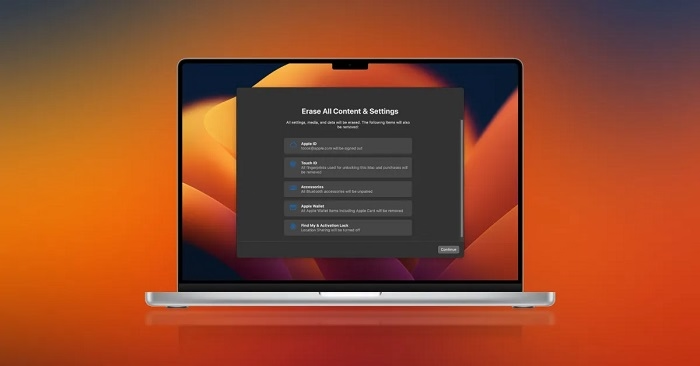
Before diving into the step-by-step process, let’s understand why wiping your MacBook Pro is crucial.
- Enhanced Performance
- Security Concerns
- Starting Anew
Preparation: Backing Up Your Data
- Utilize Time Machine
- Cloud Storage Solutions
- External Hard Drive
Sign Out of iCloud, iTunes, and App Store
- Signing Out of iCloud
- Signing Out of iTunes and App Store
Deauthorize Your MacBook Pro from iTunes
Disable FileVault Encryption
Restart Your MacBook Pro in Recovery Mode
- Shut Down Your MacBook Pro
- Restart in Recovery Mode
Erase Your MacBook Pro’s Hard Drive
- Launch Disk Utility
- Select the Startup Disk and Erase
Reinstall macOS
- Choose Reinstall macOS
- Follow On-Screen Instructions
Restore Your Data from Backup
- Utilizing Time Machine Backup
- Other Backup Methods
Congratulations! You’ve successfully wiped your MacBook Pro clean and given it a fresh start. By following this guide, you’ve not only enhanced its performance but also ensured its security and longevity. Remember, regular maintenance is key to keeping your device running smoothly in the long run. Happy computing!
Additional Tips and Tricks
- Utilize Cleaning Tools
- Monitor Your MacBook Pro’s Performance
- Stay Updated
- Invest in Quality Accessories
- Practice Safe Browsing Habits
FAQs
Will wiping my MacBook Pro delete all my data?
Yes, wiping your MacBook Pro will erase all data unless backed up prior to the process. It’s crucial to ensure you have a complete backup of your important files before proceeding with the wipe and reinstall process.
How often should I wipe my MacBook Pro?
It’s recommended to perform a wipe and reinstall of macOS every few years or as needed to maintain optimal performance. However, if you notice significant slowdowns or issues with your MacBook Pro, it may be beneficial to perform a wipe and reinstall sooner to address any underlying issues.
Can I wipe my MacBook Pro without a backup?
While it’s not advisable, you can proceed with wiping your MacBook Pro without a backup. However, you will lose all data stored on the device. It’s always best to back up your important files before performing any major system changes to avoid data loss.
Congratulations! You’ve successfully wiped your MacBook Pro clean and given it a fresh start. By following this comprehensive guide and implementing the additional tips and tricks provided, you’ve not only enhanced its performance but also ensured its security and longevity.
Remember, maintaining your MacBook Pro is an ongoing process. Regularly clean and optimize your device, stay updated with the latest software updates, and practice safe computing habits to keep your MacBook Pro running smoothly for years to come.