

The iPhone’s ear speaker is a critical component that allows users to hear phone calls, listen to voicemails, and engage in FaceTime conversations. However, it can be frustrating when the ear speaker stops working, leaving users unable to hear sound during phone calls. In this troubleshooting guide, we’ll explore the common causes of iPhone ear speaker issues and provide practical solutions to help you resolve the problem and restore audio functionality to your device.
Understanding the Problem
When the ear speaker on an iPhone stops working, users may experience the following symptoms:
- No sound or audio during phone calls.
- Distorted or muffled sound from the ear speaker.
- Low volume output from the ear speaker.
- Sound only audible when using speakerphone or headphones.
Common Causes of iPhone Ear Speaker Issues
Several factors can contribute to iPhone ear speaker problems, including hardware issues, software glitches, and environmental factors. Here are some of the most common causes:
- Hardware Damage: Physical damage to the ear speaker, such as water damage, impact damage, or debris accumulation, can impair its functionality and lead to sound issues.
- Software Glitches: Software bugs or glitches within the iPhone’s operating system (iOS) can cause audio-related problems, including issues with the ear speaker.
- Settings Misconfiguration: Incorrect settings or misconfigured audio settings on the iPhone may prevent sound from playing through the ear speaker during phone calls.
- Audio Output Routing: The iPhone’s audio output routing settings may be directing sound to alternative sources, such as Bluetooth devices or external speakers, instead of the ear speaker.
Troubleshooting Steps to Fix iPhone Ear Speaker Not Working
To diagnose and resolve iPhone ear speaker issues, follow these troubleshooting steps:
Restart Your iPhone:
Sometimes, a simple restart can resolve software-related issues and restore functionality to the ear speaker. To restart your iPhone, press and hold the power button until the “slide to power off” slider appears. Slide the slider to turn off your iPhone, then press and hold the power button again until the Apple logo appears to restart the device.
Check for Software Updates:
Ensure that your iPhone is running the latest version of iOS by checking for software updates in the Settings app. Go to Settings > General > Software Update and follow the on-screen instructions to download and install any available updates. Software updates often include bug fixes and improvements that may address audio-related issues.
Clean the Ear Speaker:
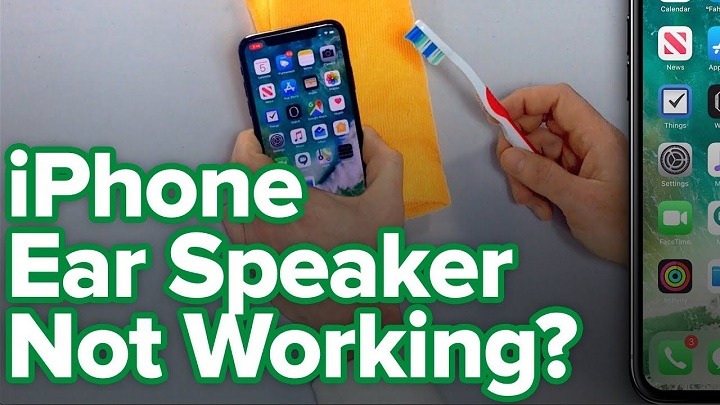
Inspect the ear speaker grille at the top of your iPhone for any debris, dust, or dirt that may be blocking sound output. Use a soft-bristled brush or compressed air to gently clean the speaker grille and remove any accumulated debris. Avoid using sharp objects or liquid cleaners, as they may damage the speaker.
Test Call with Speakerphone:
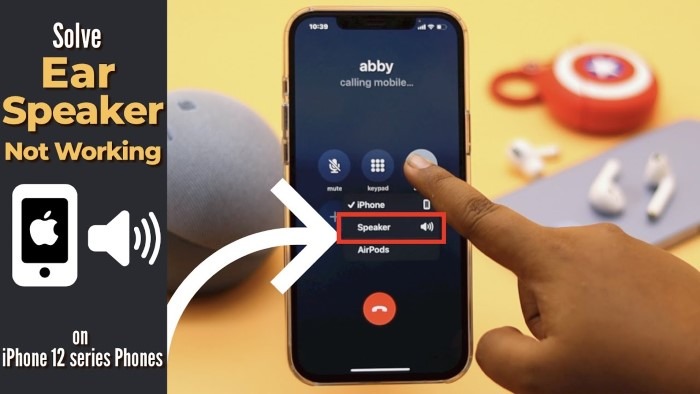
Place a test call on your iPhone and activate the speakerphone mode to determine if sound is audible through the speakerphone. If sound is audible through the speakerphone but not through the ear speaker, the issue may be isolated to the ear speaker itself.
Adjust Audio Settings:
Check the audio settings on your iPhone to ensure that sound is routed correctly to the ear speaker during phone calls. Go to Settings > Sounds & Haptics > Ringer and Alerts and adjust the volume slider to increase the volume output. Additionally, verify that the “Change with Buttons” option is enabled to control the volume with the side buttons during calls.
Perform a Factory Reset:
If other troubleshooting steps fail to resolve the issue, you may need to perform a factory reset on your iPhone to restore it to its original settings. Before proceeding, be sure to back up your iPhone data to iCloud or iTunes to prevent data loss. To perform a factory reset, go to Settings > General > Reset > Erase All Content and Settings and follow the on-screen instructions.
Contact Apple Support:
If the ear speaker issue persists after attempting the troubleshooting steps above, it may indicate a hardware problem that requires professional repair or replacement. Contact Apple Support or visit an Apple Authorized Service Provider to diagnose the issue and explore repair options.
Read More:
Dealing with a Loose iPhone Charging Port: Causes, Fixes, and Prevention Tips
Enhancing Accessibility and Productivity: Exploring the On-Screen Keyboard on Mac
Troubleshooting iPhone Black Screen on Lock Screen: A Comprehensive Guide
Experiencing issues with the iPhone ear speaker not working can be frustrating, but with the troubleshooting steps outlined in this guide, you can diagnose and resolve the problem effectively. By identifying common causes such as hardware damage, software glitches, and settings misconfiguration, you can take proactive steps to troubleshoot and fix the issue on your own. Whether it’s performing a simple restart, cleaning the ear speaker grille, or adjusting audio settings, these practical solutions can help you restore audio functionality to your iPhone ear speaker and enjoy clear and crisp sound during phone calls once again. If all else fails, don’t hesitate to seek assistance from Apple Support or authorized service professionals to address any underlying hardware issues and ensure that your iPhone functions optimally.