


Zoom is a popular video conferencing and collaboration platform used by millions of users worldwide. However, like any software, it occasionally encounters issues that may prevent updates from installing correctly. One such error is “Zoom Unable to Install Updates Error 10002,” which can be frustrating for users trying to keep their Zoom client up to date. In this guide, we’ll explore the potential causes of this error and provide step-by-step troubleshooting solutions to resolve it on your Mac.
Understanding Error 10002
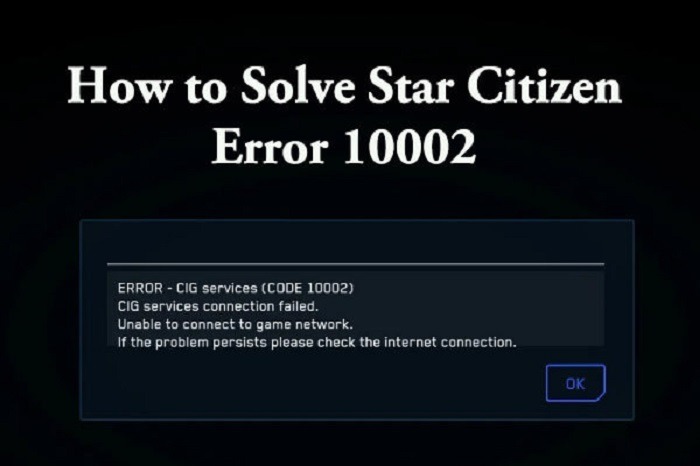
Error 10002 is a common error code encountered by Zoom users when attempting to install updates. This error typically indicates that the Zoom installer encountered a problem during the update process and was unable to complete the installation successfully. While the exact cause of this error can vary, it is often related to issues with network connectivity, permissions, or conflicting software on your Mac.
Troubleshooting Steps
To resolve “Zoom Unable to Install Updates Error 10002” on your Mac, follow these troubleshooting steps:
Check Network Connectivity:
- Ensure that your Mac is connected to a stable and reliable internet connection.
- Try accessing other websites or downloading files to confirm that your internet connection is working correctly.
Restart Zoom:
- Quit the Zoom application completely by clicking on the “Zoom” menu in the top-left corner of the screen and selecting “Quit Zoom.”
- Relaunch Zoom and attempt to install the updates again.
Update Zoom Manually:
- If you’re unable to install updates using the automatic updater, try downloading the latest version of Zoom directly from the Zoom website.
- Go to the Zoom Download Center (https://zoom.us/download) and download the Zoom installer for Mac.
- Run the installer and follow the on-screen instructions to update Zoom manually.
Check System Requirements:
- Make sure that your Mac meets the minimum system requirements for running Zoom. Check the Zoom website for the latest system requirements.
- Ensure that your Mac is running a compatible version of macOS.
Clear Zoom Cache and Preferences:
- Sometimes, corrupted cache or preferences files can cause issues with the Zoom updater. Clearing these files may resolve the error.
- Open Finder and navigate to the “Go” menu in the top menu bar.
- Select “Go to Folder” and enter the following path: ~/Library/Application Support/Zoom/
- Delete the “CachedData” folder and “zoom.us.plist” file from the Zoom folder.
- Restart your Mac and try installing the updates again.
Check Firewall and Security Software:
- Verify that your Mac’s firewall or security software is not blocking Zoom from accessing the internet or installing updates.
- Temporarily disable any firewall or security software and attempt to install the updates again.
Repair Disk Permissions:
- Use the Disk Utility application to repair disk permissions on your Mac. Incorrect permissions can sometimes interfere with software installations.
- Open Disk Utility from the Applications folder or Spotlight search.
- Select your Mac’s startup disk from the list on the left and click on the “First Aid” tab.
- Click “Run” to repair disk permissions.
Update macOS:
- Make sure that your Mac is running the latest version of macOS. Outdated operating systems can sometimes cause compatibility issues with software updates.
- Go to the Apple menu > System Preferences > Software Update and install any available updates for macOS.
Read More:
Elevate Your Style: Exploring the Brighton Apple Watch Band Collection
Elevate Your Style with Beaded Apple Watch Bands: A Fashionable Fusion of Function and Design
Elevating Your Drive with Apple Music Tesla Integration: A Harmonious Fusion of Music and Technology
“Zoom Unable to Install Updates Error 10002” can be a frustrating issue for Mac users trying to keep their Zoom client up to date. However, by following the troubleshooting steps outlined in this guide, you can diagnose and resolve the error effectively. Whether it’s checking network connectivity, updating Zoom manually, or clearing cache and preferences files, there are several steps you can take to address the issue and ensure that Zoom updates install successfully on your Mac. If you continue to encounter problems, consider reaching out to Zoom support for further assistance. With these solutions at your disposal, you can stay connected and productive with the latest version of Zoom on your Mac.