

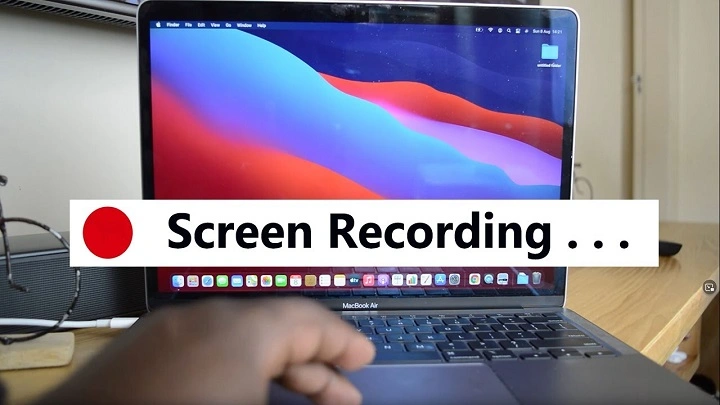
In today’s digital age, the ability to record your screen has become an invaluable tool for various purposes, from creating tutorials to troubleshooting technical issues. If you’re a MacBook user looking to harness the power of screen recording, you’ve come to the right place. In this guide, we’ll explore everything you need to know about screen recording on your MacBook, from built-in tools to third-party software options.
Getting Started with Built-in Tools
Screen Recording Basics
Before we dive into third-party software solutions, let’s first explore the built-in options available on your MacBook. macOS offers a robust set of features for screen recording, making it easy for users to capture their screen without installing additional software.
Using QuickTime Player
One of the simplest ways to record your screen on a MacBook is by using QuickTime Player, a multimedia player that comes pre-installed on macOS. Here’s how to get started with QuickTime Player’s screen recording feature:
- Open QuickTime Player from your Applications folder or Spotlight search.
- In the menu bar, click on “File” and select “New Screen Recording.”
- A small recording window will appear on your screen. Click the red record button to start recording.
- You can choose to record the entire screen or drag to select a specific portion of the screen to record.
- Once you’re done recording, click the stop button in the menu bar or press Command + Control + Esc on your keyboard.
- Save your recording by clicking on “File” and selecting “Save” from the menu.
Exploring macOS Screenshot Utility
In addition to screen recording, macOS also offers a powerful screenshot utility that allows you to capture images and annotate them with ease. While not a traditional screen recording tool, the macOS screenshot utility can be used to create step-by-step guides and tutorials.
Advanced Screen Recording Techniques
Customizing Your Recording Settings
While QuickTime Player offers basic screen recording functionality, you may find yourself needing more advanced features, such as the ability to record audio from your computer’s microphone or capture system sounds. Fortunately, macOS allows you to customize your recording settings to suit your needs.
Third-Party Screen Recording Software
While macOS provides built-in screen recording capabilities, you may find that third-party software offers additional features and flexibility. There are several options available, ranging from free to paid, each with its own set of features and capabilities.
Choosing the Right Software
When selecting third-party screen recording software for your MacBook, it’s important to consider your specific needs and requirements. Some popular options include:
- ScreenFlow: A professional-grade screen recording and video editing software that offers a wide range of features, including multi-track editing and built-in animations.
- Camtasia: Another powerful screen recording and video editing tool that is popular among educators and content creators.
- OBS Studio: An open-source screen recording and live streaming software that is highly customizable and offers support for multiple platforms.
Tips and Tricks for Effective Screen Recording
Optimizing Performance
Screen recording can be resource-intensive, especially if you’re capturing high-resolution video or streaming content from your browser. To ensure smooth performance, consider closing unnecessary applications and reducing the resolution of your recording.
Creating Engaging Content
In addition to technical considerations, it’s important to think about the content and presentation of your screen recordings. Consider adding annotations, captions, and overlays to make your videos more engaging and informative.
Screen recording on a MacBook is a powerful tool that can be used for a wide range of purposes, from creating tutorials to capturing gameplay footage. Whether you’re using built-in tools like QuickTime Player or exploring third-party software options, mastering the art of screen recording can open up new possibilities for creativity and productivity. With the tips and techniques outlined in this guide, you’ll be well on your way to creating professional-quality screen recordings on your MacBook.
Exploring Advanced Features of Third-Party Software
While the built-in screen recording options on macOS provide a solid foundation, many users find themselves drawn to third-party software for their additional features and customization options. Let’s delve deeper into some of the advanced features offered by popular third-party screen recording software.
Enhanced Editing Capabilities
One of the main advantages of using third-party software is the enhanced editing capabilities they offer. Programs like ScreenFlow and Camtasia provide powerful editing tools that allow you to trim footage, add annotations, overlay images and text, and even incorporate animations and effects into your recordings.
For example, with ScreenFlow’s intuitive timeline-based editing interface, you can easily cut and rearrange clips, add transitions between scenes, and adjust audio levels for a polished final product. Similarly, Camtasia’s drag-and-drop editor makes it easy to create professional-looking videos with minimal effort.
Advanced Audio Options
In addition to video recording, many third-party screen recording software options also offer advanced audio recording capabilities. This includes the ability to capture audio from your computer’s microphone, system sounds, and even external audio sources such as a USB microphone or audio interface.
For example, OBS Studio allows you to create multiple audio tracks, making it easy to separate and adjust audio levels for different elements of your recording. This can be particularly useful for creating tutorials or gameplay videos where you want to overlay your voice narration on top of the gameplay audio.
Live Streaming
Another feature offered by some third-party screen recording software is live streaming capabilities. Programs like OBS Studio and ScreenFlow allow you to broadcast your screen and audio live to popular streaming platforms such as Twitch, YouTube, and Facebook Live.
Live streaming opens up a whole new world of possibilities for content creators, allowing you to engage with your audience in real-time and build a community around your content. Whether you’re streaming gameplay, hosting a Q&A session, or delivering a live tutorial, third-party software makes it easy to share your screen with the world.
Best Practices for Effective Screen Recording
Now that we’ve covered the basics of screen recording and explored some of the advanced features offered by third-party software, let’s discuss some best practices for creating effective screen recordings.
Plan Your Content
Before you hit the record button, take some time to plan out your content. Consider what you want to achieve with your recording and outline the key points you want to cover. This will help you stay focused and organized during the recording process, resulting in a more polished final product.
Practice Makes Perfect
Like any skill, screen recording takes practice to master. Don’t be discouraged if your first few recordings don’t turn out exactly as you’d hoped. Take the time to experiment with different recording settings and editing techniques, and don’t be afraid to ask for feedback from friends, colleagues, or online communities.
Keep It Engaging
To keep your audience engaged, try to vary the pace and style of your recording. Incorporate visuals such as screenshots, diagrams, and animations to illustrate key points, and consider adding background music or sound effects to enhance the viewing experience.
Screen recording on a MacBook is a versatile tool that can be used for everything from creating tutorials to recording gameplay footage. Whether you’re using built-in tools like QuickTime Player or exploring third-party software options like ScreenFlow and Camtasia, mastering the art of screen recording opens up a world of possibilities for creativity and communication.
By understanding the features and capabilities of different screen recording options and following best practices for effective recording, you can create professional-quality videos that inform, educate, and entertain your audience. So what are you waiting for? Start recording today and unleash your creativity on the screen!