

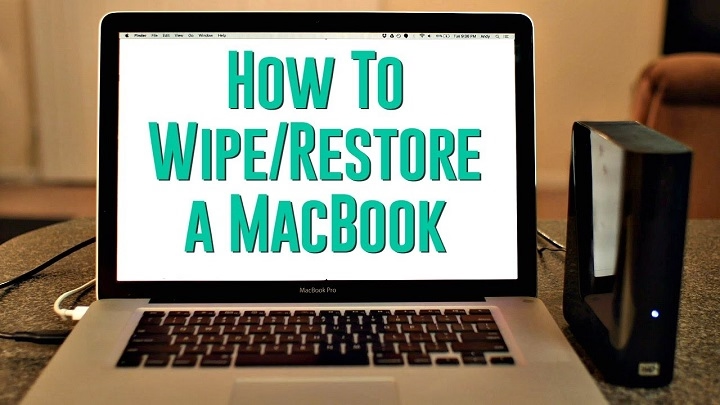
In today’s digital age, our laptops often become the epicenter of our lives, storing valuable data, cherished memories, and essential work documents. However, there comes a time when we need to bid farewell to our trusty MacBook Air and pass it on to a new owner, donate it, or simply start afresh. In such instances, wiping your MacBook Air clean becomes imperative to protect your privacy and ensure a smooth transition. In this comprehensive guide, we’ll delve into the intricacies of wiping your MacBook Air, covering everything from preparation to execution and beyond.
Why Wipe Your MacBook Air?
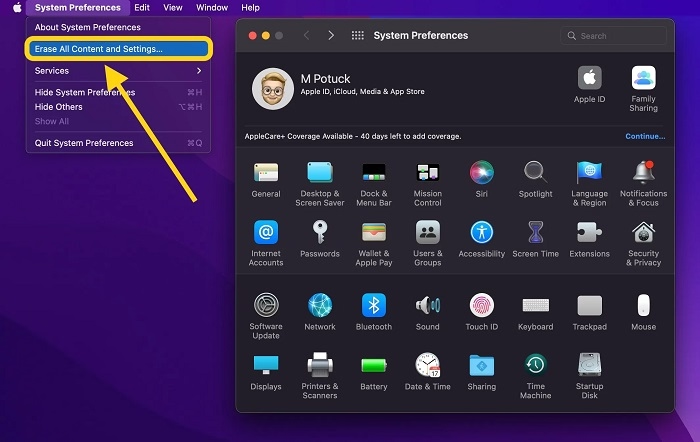
Before we delve into the technicalities of wiping your MacBook Air, let’s first understand why it’s necessary.
- Data Security and Privacy
- Prepare Your MacBook Air for Wiping
Now that you’re convinced of the importance of wiping your MacBook Air let’s get into the nitty-gritty of preparation.
- Backup Your Data
- Sign Out of iCloud, iTunes, and App Store
- Deauthorize Your MacBook Air
- Gather Necessary Materials
- Know Your macOS Version
Ways to Wipe Your MacBook Air
With your MacBook Air adequately prepared for the wiping process, it’s time to explore the various methods available for wiping your device.
- Wipe Your MacBook Air Using macOS Recovery
Restart Your MacBook Air in Recovery Mode
Erase Your MacBook Air’s Hard Drive
Reinstall macOS
- Wipe Your MacBook Air Using Disk Utility
Access Disk Utility
Erase Your MacBook Air’s Hard Drive
- Wipe Your MacBook Air Using Internet Recovery
Restart Your MacBook Air in Internet Recovery Mode
Erase Your MacBook Air’s Hard Drive
Reinstall macOS
Post-Wiping Measures
Congratulations! You’ve successfully wiped your MacBook Air clean. But before you bid adieu, there are a few essential post-wiping measures to undertake.
- Set Up Your MacBook Air as New or for the Next User
- Install Essential Apps and Updates
- Enable Necessary Security Settings
- Dispose of Your MacBook Air Responsibly
Beyond Wiping: Maximizing Your MacBook Air’s Potential
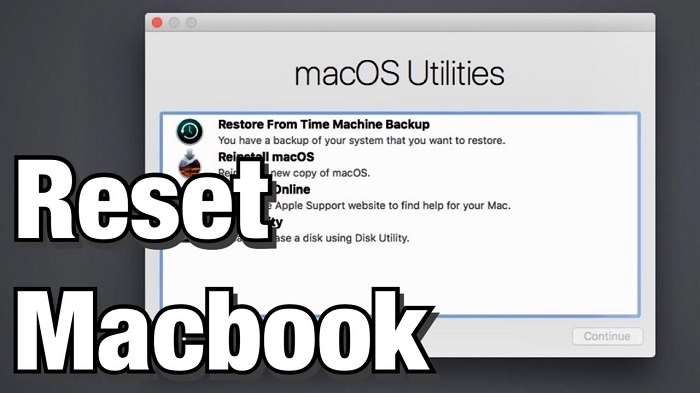
Now that you’ve mastered the art of wiping your MacBook Air, let’s explore how you can maximize its potential beyond the wiping process. From optimizing performance to enhancing security and customizing your user experience, there are several avenues to explore.
Optimizing Performance
A wiped MacBook Air presents a fresh canvas to optimize its performance. Here are some tips to ensure your device runs smoothly:
- Update macOS: Keeping your operating system up to date is essential for security and performance enhancements. Check for updates regularly to ensure you’re running the latest version of macOS.
- Manage Startup Items: Minimize the number of applications that launch at startup to reduce system resource usage and improve boot times. You can manage startup items in the “Users & Groups” section of System Preferences.
- Clear Disk Space: Regularly declutter your MacBook Air by removing unnecessary files, applications, and cached data. Use built-in utilities like Disk Utility or third-party apps to identify and remove large or redundant files.
- Enable Trim: If you’ve replaced the SSD in your MacBook Air or have a newer model, consider enabling Trim support. Trim helps maintain optimal SSD performance by managing data blocks efficiently. You can enable Trim using third-party utilities like Trim Enabler.
- Monitor Activity Monitor: Keep an eye on resource usage using Activity Monitor. Identify and close resource-intensive applications or processes that may be slowing down your MacBook Air.
Enhancing Security
Security is paramount in today’s digital landscape. Here are some steps to enhance the security of your wiped MacBook Air:
- Enable FileVault: FileVault encrypts the data on your MacBook Air’s startup disk, ensuring that even if your device falls into the wrong hands, your data remains secure. Enable FileVault in the “Security & Privacy” section of System Preferences.
- Set Up a Firmware Password: Protect your MacBook Air from unauthorized access by setting up a firmware password. A firmware password prevents your device from starting up from any internal or external storage device without entering the password.
- Enable Firewall: macOS includes a built-in firewall that can help block unauthorized incoming connections. Enable the firewall in the “Security & Privacy” section of System Preferences to add an extra layer of protection to your MacBook Air.
- Use Strong Passwords and Two-Factor Authentication: Utilize strong, unique passwords for your accounts and enable two-factor authentication whenever possible. This adds an additional layer of security by requiring a second form of verification to access your accounts.
- Regularly Update Software: Keep all software, including third-party applications, up to date to patch security vulnerabilities and protect your MacBook Air from potential threats.
Customizing Your User Experience
Personalization is key to making your MacBook Air feel like your own. Here are some ways to customize your user experience:
- Customize Desktop and Dock: Arrange your desktop icons and Dock to your liking. You can change the wallpaper, adjust icon size and spacing, and add or remove apps from the Dock for quick access.
- Explore System Preferences: Dive into System Preferences to customize various aspects of your MacBook Air, including display settings, trackpad preferences, energy saver options, and more. Experiment with different settings to find what works best for you.
- Install Productivity Apps: Discover and install productivity apps that complement your workflow. Whether it’s a note-taking app, task manager, or productivity suite, find tools that help you stay organized and efficient.
- Explore Accessibility Features: macOS includes a range of accessibility features designed to make your MacBook Air more user-friendly for individuals with disabilities. Explore these features in the “Accessibility” section of System Preferences to enhance your user experience.
- Experiment with Automations: Take advantage of built-in automation tools like Automator and AppleScript to streamline repetitive tasks and workflows. Create custom workflows to automate tasks and save time.
By implementing these tips and exploring additional customization options, you can tailor your MacBook Air to suit your preferences and maximize its potential beyond the wiping process. Whether you’re a productivity enthusiast, security-conscious user, or creative professional, there are endless possibilities to explore and personalize your MacBook Air experience.