

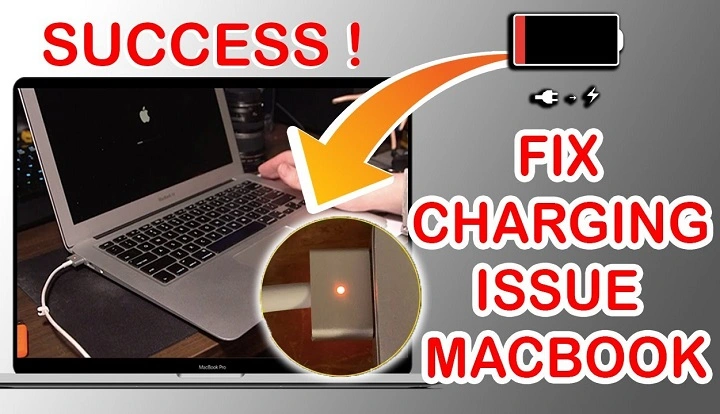
In today’s fast-paced digital world, our laptops have become essential tools for work, communication, and entertainment. Among the most popular choices for professionals and creatives alike is the MacBook Pro, renowned for its sleek design, powerful performance, and reliable battery life. However, even the most dependable devices can encounter issues, and one common frustration among MacBook Pro users is when the battery fails to charge properly.
If you’re experiencing this problem, fear not! In this comprehensive guide, we’ll delve into the potential causes behind your MacBook Pro’s charging woes and provide you with a range of troubleshooting tips to help you get your device back up and running smoothly.
Understanding the Issue: Why Won’t Your MacBook Pro Charge?
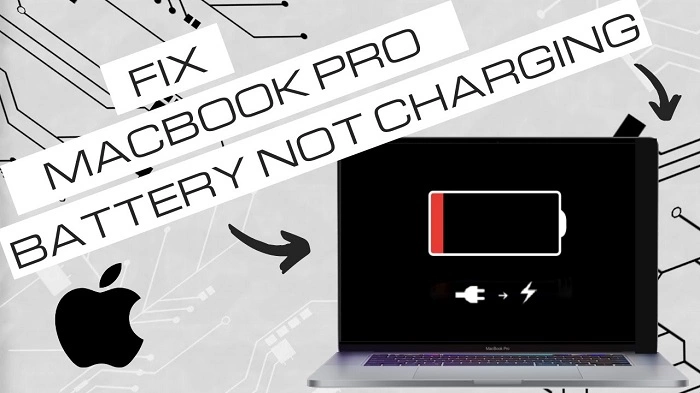
Before diving into troubleshooting solutions, it’s essential to understand the possible reasons why your MacBook Pro battery may not be charging. Several factors could contribute to this issue, ranging from hardware malfunctions to software glitches. Let’s explore some of the most common culprits:
- Faulty Power Adapter or Cable
- Battery Health Degradation
- Software Issues or System Malfunctions
- SMC (System Management Controller) Reset Needed
- Hardware Damage or Component Failure
Now that we’ve identified potential causes let’s move on to the troubleshooting steps you can take to address the problem effectively.
Troubleshooting Tips: How to Fix Your MacBook Pro Battery Charging Issue
- Check Your Power Adapter and Cable
- Verify Battery Health
- Restart Your MacBook Pro
- Reset the SMC (System Management Controller)
- Update macOS and Reset NVRAM/PRAM
- Perform Hardware Diagnostics
- Seek Professional Assistance
- Check Your Power Adapter and Cable
Problem: A faulty power adapter or cable can prevent your MacBook Pro from charging correctly.
Solution:
- Inspect the Power Adapter: Check for any signs of physical damage, such as frayed cables or bent connectors. If you notice any issues, consider replacing the power adapter.
- Try a Different Cable: If possible, test your MacBook Pro with a different charging cable to rule out cable-related issues.
- Test with Another Power Outlet: Sometimes, the problem may lie with the power outlet rather than the adapter or cable. Try plugging your charger into a different outlet to see if that resolves the issue.
Verify Battery Health
Problem: Over time, MacBook Pro batteries can degrade, leading to diminished charging capacity and performance.
Solution:
- Check Battery Health: Open the “System Information” utility on your MacBook Pro (found in the “Utilities” folder within the “Applications” folder) and navigate to the “Power” section. Here, you can view your battery’s cycle count and health status. If the battery health is significantly degraded or the cycle count is high, it may be time to replace the battery.
- Battery Replacement: If your MacBook Pro is still under warranty or AppleCare, contact Apple Support to inquire about battery replacement options. If not, consider visiting an authorized Apple service provider for a battery replacement service.
Restart Your MacBook Pro
Problem: Software glitches or temporary system issues may prevent your MacBook Pro from charging properly.
Solution:
- Restart Your MacBook Pro: Sometimes, a simple restart can resolve software-related issues. Save your work, then shut down your MacBook Pro and restart it after a few seconds. Check if the charging problem persists.
- Reset the SMC (System Management Controller)
Problem: The SMC is responsible for managing various hardware components on your MacBook Pro, including power management.
Solution:
- Perform an SMC Reset: To reset the SMC, shut down your MacBook Pro and disconnect the power adapter. Hold down the Shift, Control, Option, and Power buttons simultaneously for about 10 seconds, then release them. Reconnect the power adapter and turn on your MacBook Pro. Check if the charging issue has been resolved.
Update macOS and Reset NVRAM/PRAM
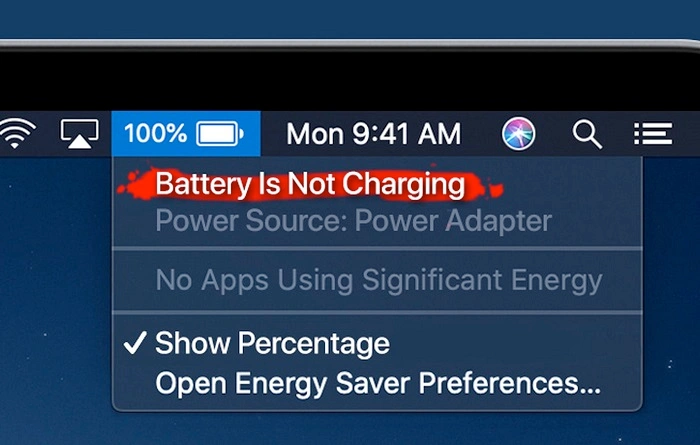
Problem: Outdated system software or corrupted NVRAM/PRAM settings could contribute to charging problems.
Solution:
- Update macOS: Ensure that your MacBook Pro is running the latest version of macOS. Go to the Apple menu > System Preferences > Software Update, and install any available updates.
- Reset NVRAM/PRAM: Shut down your MacBook Pro, then turn it on and immediately press and hold the Option, Command, P, and R keys simultaneously. Keep holding the keys until you hear the startup sound for the second time, then release them. Check if the charging issue persists.
Perform Hardware Diagnostics
Problem: Persistent charging issues may indicate underlying hardware problems.
Solution:
- Run Apple Diagnostics: Shut down your MacBook Pro, then turn it on and immediately press and hold the D key. Keep holding the key until you see the Apple Diagnostics screen. Follow the on-screen instructions to run diagnostics on your MacBook Pro’s hardware components. If any issues are detected, note the error code and contact Apple Support or visit an authorized service provider for assistance.
Seek Professional Assistance
Problem: If none of the above solutions resolve the charging problem, it’s possible that your MacBook Pro requires professional repair or service.
Solution:
- Contact Apple Support: Reach out to Apple Support for personalized assistance with diagnosing and resolving your MacBook Pro’s charging issue. If necessary, they can help you schedule a repair appointment at an Apple Store or authorized service provider.
Experiencing charging problems with your MacBook Pro can be frustrating, but with the right troubleshooting steps, you can often identify and resolve the issue effectively. By checking your power adapter and cable, verifying battery health, performing software resets, and seeking professional assistance when needed, you can ensure that your MacBook Pro remains a reliable companion for your daily tasks and projects.
If you’ve followed the troubleshooting tips outlined in this guide and are still unable to resolve the charging issue, don’t hesitate to reach out to Apple Support or visit an authorized service provider for further assistance. With their expertise and resources, you can get your MacBook Pro back to optimal performance and enjoy uninterrupted productivity once again.
Advanced Troubleshooting Techniques and Additional Considerations
While the troubleshooting tips mentioned earlier cover many common scenarios, some charging issues may require more advanced techniques or consideration of specific factors. Let’s explore additional steps you can take to address stubborn charging problems and ensure optimal performance for your MacBook Pro.
Check for Third-Party Interference
Problem: Certain third-party accessories or software applications may interfere with your MacBook Pro’s charging process.
Solution:
- Remove External Accessories: Disconnect any external devices or accessories connected to your MacBook Pro, such as USB hubs, peripherals, or docking stations. Sometimes, incompatible or malfunctioning accessories can disrupt the charging process.
- Uninstall Suspicious Software: If you’ve recently installed third-party software or utilities, especially those related to power management or system optimization, consider uninstalling them temporarily to see if they’re causing the issue.
Monitor Activity and Power Consumption
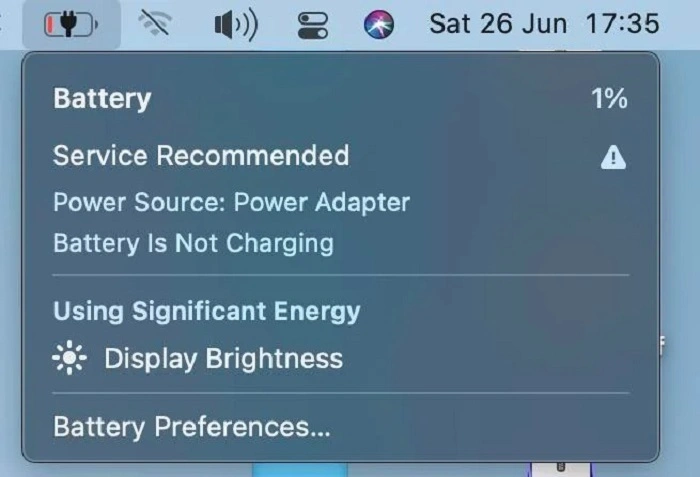
Problem: Intensive tasks or background processes may drain your MacBook Pro’s battery faster than it can charge, leading to perceived charging issues.
Solution:
- Check Activity Monitor: Use the Activity Monitor utility (found in the “Utilities” folder within the “Applications” folder) to monitor CPU, memory, disk, and energy usage on your MacBook Pro. Look for any processes or applications consuming significant resources and consider closing or quitting them to reduce power consumption.
- Optimize Energy Settings: Navigate to the Energy Saver preferences in System Preferences and adjust settings to optimize power usage. Lowering screen brightness, disabling Bluetooth or Wi-Fi when not needed, and reducing background app activity can help conserve battery power and facilitate charging
Consider Environmental Factors
Problem: Environmental conditions, such as temperature and humidity, can affect the performance and health of your MacBook Pro’s battery.
Solution:
- Avoid Extreme Temperatures: Exposing your MacBook Pro to extreme heat or cold can impact battery performance and longevity. Keep your device within the recommended temperature range specified by Apple, and avoid leaving it in direct sunlight or near heat sources for extended periods.
- Use Genuine Apple Accessories: Using genuine Apple power adapters and cables ensures compatibility and optimal performance for charging your MacBook Pro. Avoid using counterfeit or uncertified accessories, as they may not provide reliable charging or could potentially damage your device.
Update Firmware and Drivers
Problem: Outdated firmware or driver software for your MacBook Pro’s hardware components can lead to compatibility issues or performance problems.
Solution:
- Check for Firmware Updates: Visit the Apple Support website or use the Software Update feature in macOS to check for firmware updates specifically for your MacBook Pro model. Install any available updates to ensure that your device’s firmware is up to date.
- Update Device Drivers: If you’re using external peripherals or accessories with your MacBook Pro, ensure that you have the latest drivers or software updates installed for compatibility and optimal performance. Check the manufacturer’s website for driver downloads or update utilities.
Document and Monitor Charging Behavior
Problem: Documenting the specific circumstances and behavior of your MacBook Pro’s charging issue can provide valuable insights for troubleshooting and diagnosis.
Solution:
- Keep a Charging Log: Note the date, time, and duration of charging sessions, as well as any observed patterns or anomalies in the charging behavior (e.g., slow charging, sudden battery drain). Document any changes or interventions you make during the troubleshooting process.
- Monitor Battery Usage: Use macOS’s built-in battery usage statistics to track which applications or processes are consuming the most power on your MacBook Pro. This information can help you identify potential culprits contributing to charging issues.
By incorporating these advanced troubleshooting techniques and considerations into your efforts to resolve your MacBook Pro’s charging issue, you can approach the problem with greater precision and effectiveness. Remember to systematically test each potential solution and document your observations to facilitate the troubleshooting process.
If you’re still unable to resolve the charging problem after exhaustively exploring these troubleshooting steps, don’t hesitate to seek professional assistance from Apple Support or authorized service providers. With their expertise and diagnostic tools, they can help diagnose and address underlying hardware or software issues that may be causing the problem.
Ultimately, by staying proactive, informed, and resourceful, you can overcome charging woes and ensure that your MacBook Pro remains a reliable and indispensable tool for your personal and professional endeavors.