


Are you a proud MacBook owner but frustrated by the lack of a visible battery percentage indicator? You’re not alone! Many MacBook users find it inconvenient not knowing exactly how much juice is left in their batteries. Fortunately, there’s a simple solution to this problem that’s often overlooked. In this guide, we’ll show you how to reveal the hidden battery percentage on your MacBook and maximize your productivity.
The Need for Battery Percentage MacBook
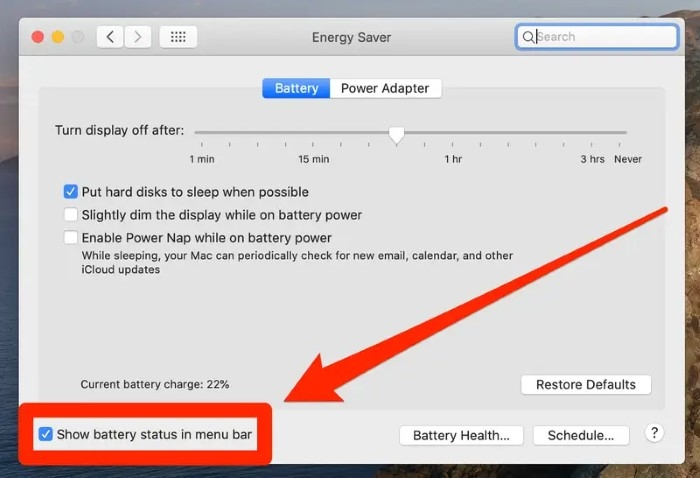
Knowing the exact battery percentage on your MacBook is crucial, especially when you’re on the go or working on critical tasks. It helps you plan your work efficiently and ensures you don’t run out of power unexpectedly. While macOS provides a battery icon in the menu bar, it doesn’t display the percentage by default, leaving users in the dark about their battery status.
Unveiling the Hidden Percentage
To reveal the hidden battery percentage on your MacBook, follow these simple steps:
- Open System Preferences: Click on the Apple logo in the top-left corner of your screen and select “System Preferences” from the dropdown menu.
- Navigate to Energy Saver: In the System Preferences window, locate and click on the “Energy Saver” icon. This will open the Energy Saver preferences pane.
- Check the Box: Within the Energy Saver preferences pane, you’ll see a checkbox labeled “Show battery status in menu bar.” Check this box, and voila! The battery percentage will now appear in the menu bar next to the battery icon.
- Customize Display: If you want to further customize how the battery percentage is displayed, you can do so by clicking on the “Battery” tab within the Energy Saver preferences pane. Here, you can choose to display the battery percentage remaining or the time remaining before your MacBook runs out of power.
Benefits of Revealing Battery Percentage
Revealing the battery percentage on your MacBook offers several benefits:
- Improved Awareness: With the battery percentage readily visible in the menu bar, you’ll have a better understanding of your MacBook’s current power status at a glance. This increased awareness allows you to plan your usage more effectively and avoid unexpected shutdowns.
- Enhanced Productivity: Knowing exactly how much battery life you have left enables you to manage your tasks more efficiently. You can prioritize your work and allocate resources accordingly, ensuring you make the most of your MacBook’s battery life.
- Peace of Mind: By having real-time information about your battery status, you’ll enjoy greater peace of mind, especially when working on important projects or during long periods away from a power source. No more worrying about your MacBook dying on you at a crucial moment!
Additional Tips for Battery Management
While revealing the battery percentage is a great start, there are several other steps you can take to maximize your MacBook’s battery life:
- Adjust Display Brightness: Lowering the brightness of your MacBook’s display can significantly extend battery life. Consider dimming the screen when working in dimly lit environments or when you don’t need maximum brightness.
- Manage Background Processes: Close any unnecessary apps or processes running in the background to reduce battery consumption. You can use Activity Monitor to identify resource-intensive tasks and quit them if they’re not essential.
- Enable Power Saving Features: macOS offers various power-saving features, such as Power Nap and App Nap, which can help conserve battery life. Enable these features in the Energy Saver preferences pane to optimize your MacBook’s power efficiency.
- Use Safari Instead of Chrome: If you’re a frequent web user, consider using Safari instead of Chrome, as it’s optimized for macOS and consumes less battery power.
Revealing the hidden battery percentage on your MacBook is a simple yet effective way to improve your overall user experience and productivity. By following the steps outlined in this guide and implementing additional battery-saving techniques, you can make the most of your MacBook’s battery life and stay powered up whenever and wherever you need it. Say goodbye to battery anxiety and hello to uninterrupted workflow with your fully charged MacBook!
Maximize Your MacBook: Revealing the Hidden Battery Percentage Trick!
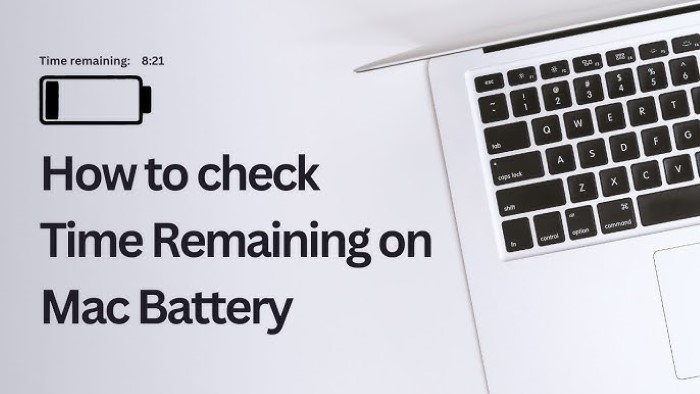
Are you tired of constantly guessing how much battery life is left on your MacBook? The default battery icon on macOS provides a visual cue, but it doesn’t give you precise information about the remaining battery percentage. Fortunately, there’s a simple solution to this problem that can greatly enhance your MacBook experience. In this comprehensive guide, we’ll explore why knowing your MacBook’s battery percentage is essential, how to reveal the hidden percentage, and additional tips to optimize your battery life.
Why Knowing Your MacBook’s Battery Percentage Matters
Understanding your MacBook’s battery percentage is crucial for several reasons:
- Accurate Planning: Whether you’re working on a critical project or traveling, knowing the exact battery percentage helps you plan your activities better. You can decide when to plug in your MacBook for charging or adjust your workload based on the remaining battery life.
- Preventing Unexpected Shutdowns: Running out of battery power in the middle of an important task can be frustrating and disruptive. By monitoring the battery percentage, you can avoid sudden shutdowns and ensure uninterrupted productivity.
- Monitoring Battery Health: Regularly checking the battery percentage allows you to track the health of your MacBook’s battery over time. A significant drop in battery capacity may indicate the need for maintenance or replacement.
How to Reveal the Hidden Battery Percentage
Now that you understand the importance of knowing your MacBook’s battery percentage, let’s walk through the steps to reveal it:
- Open System Preferences: Click on the Apple logo in the top-left corner of your screen and select “System Preferences” from the dropdown menu.
- Navigate to Energy Saver: In the System Preferences window, locate and click on the “Energy Saver” icon. This will open the Energy Saver preferences pane.
- Check the Box: Within the Energy Saver preferences pane, you’ll find a checkbox labeled “Show battery status in menu bar.” Check this box, and the battery percentage will now appear in the menu bar next to the battery icon.
- Customize Display: You can further customize how the battery percentage is displayed by clicking on the “Battery” tab within the Energy Saver preferences pane. Here, you can choose to display the battery percentage remaining or the time remaining before your MacBook runs out of power.
By following these simple steps, you can gain instant access to your MacBook’s battery percentage and take control of your device’s power management.
Benefits of Revealing Battery Percentage
Revealing the battery percentage on your MacBook offers several benefits:
- Improved Awareness: With the battery percentage readily visible in the menu bar, you’ll have a better understanding of your MacBook’s current power status at a glance. This increased awareness allows you to plan your usage more effectively and avoid unexpected shutdowns.
- Enhanced Productivity: Knowing exactly how much battery life you have left enables you to manage your tasks more efficiently. You can prioritize your work and allocate resources accordingly, ensuring you make the most of your MacBook’s battery life.
- Peace of Mind: By having real-time information about your battery status, you’ll enjoy greater peace of mind, especially when working on important projects or during long periods away from a power source. No more worrying about your MacBook dying on you at a crucial moment!
Additional Tips for Battery Management
While revealing the battery percentage is a great start, there are several other steps you can take to maximize your MacBook’s battery life:
- Adjust Display Brightness: Lowering the brightness of your MacBook’s display can significantly extend battery life. Consider dimming the screen when working in dimly lit environments or when you don’t need maximum brightness.
- Manage Background Processes: Close any unnecessary apps or processes running in the background to reduce battery consumption. You can use Activity Monitor to identify resource-intensive tasks and quit them if they’re not essential.
- Enable Power Saving Features: macOS offers various power-saving features, such as Power Nap and App Nap, which can help conserve battery life. Enable these features in the Energy Saver preferences pane to optimize your MacBook’s power efficiency.
- Use Safari Instead of Chrome: If you’re a frequent web user, consider using Safari instead of Chrome, as it’s optimized for macOS and consumes less battery power.
- Keep Software Updated: Regularly updating your macOS and applications ensures you’re benefiting from the latest optimizations and bug fixes, which can contribute to improved battery performance.
Revealing the hidden battery percentage on your MacBook is a simple yet effective way to enhance your user experience and productivity. By following the steps outlined in this guide and implementing additional battery-saving techniques, you can make the most of your MacBook’s battery life and stay powered up whenever and wherever you need it. Say goodbye to battery anxiety and hello to uninterrupted workflow with your fully charged MacBook!