

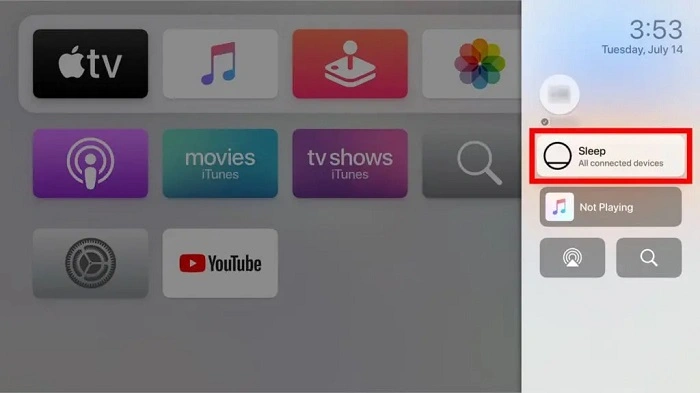
If you’re new to Apple TV or recently upgraded your device, you might be wondering how to turn it off. Unlike traditional TVs that have a simple power button, Apple TV operates a bit differently. Whether you’re using the latest Apple TV 4K or an older Apple TV HD model, turning off the device involves putting it into sleep mode, which conserves energy while keeping it ready for instant use. In this guide, we’ll show you how to turn off any Apple TV model, whether you’re using the Siri Remote, an iPhone, or the Settings app.
Does Apple TV Really Turn Off?
Before we dive into the how-to, it’s important to understand that Apple TV doesn’t technically “turn off” in the traditional sense. Instead, it goes into Sleep Mode, which is Apple’s version of standby. This allows the device to remain energy-efficient while still being able to wake quickly when you need it.
In Sleep Mode:
- Your Apple TV stops streaming and processing content
- Power usage drops significantly
- The system remains ready to wake almost instantly
Think of it like putting a laptop to sleep instead of shutting it down. That said, if needed, you can restart or unplug your Apple TV for a full power-down.
How to Turn Off Apple TV Using the Remote
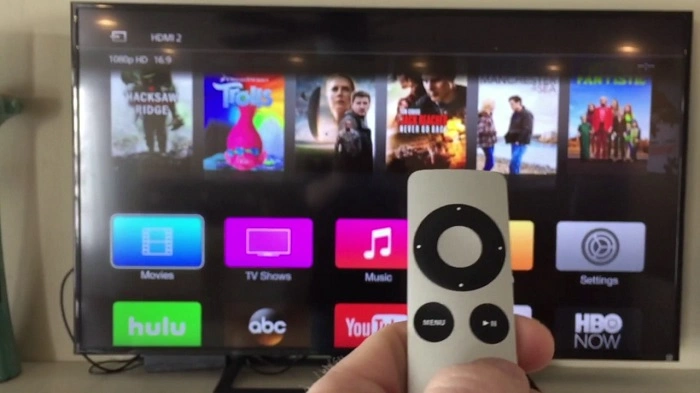
For Siri Remote (2nd and 3rd Generation)
If you have the newer Siri Remote with the circular touchpad (introduced with Apple TV 4K models):
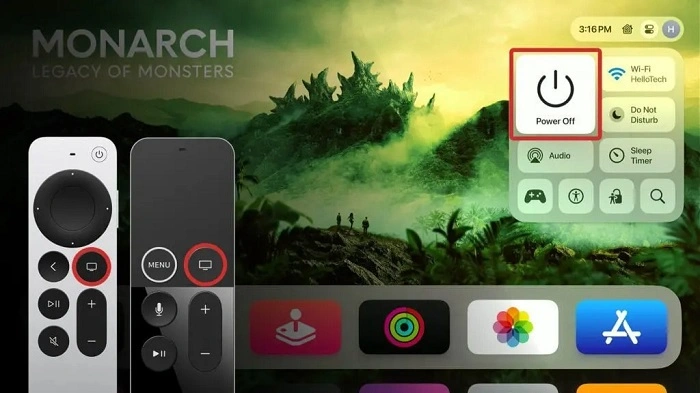
- Press and hold the TV/Control Center button (looks like a TV screen icon) on the remote.
- A control center menu will appear on the screen.
- Scroll to the bottom and select Sleep to turn off your Apple TV.
Shortcut Method
- Simply press and hold the Power button (if your Siri Remote has one) — this will automatically put Apple TV into sleep mode.
For Older Siri Remote (1st Generation)
- Press and hold the Home button (TV icon) until the menu appears.
- Choose Sleep Now to turn off the device.
Note: If your Apple TV is connected to a compatible smart TV, this action may also turn off the television via HDMI-CEC.
How to Turn Off Apple TV Using the Settings App
Don’t have your remote handy? No problem — you can put your Apple TV to sleep directly from the Settings menu.
- Open the Settings app on your Apple TV.
- Scroll down to System.
- Select Sleep Now.
This method works for all Apple TV models running tvOS 13 or later.
How to Turn Off Apple TV Using an iPhone or iPad
If you’ve lost your remote or prefer using your iPhone, you can use the Apple TV Remote app in Control Center:
- Open Control Center on your iPhone or iPad.
- Tap the Apple TV Remote icon.
- Connect to your Apple TV (if not already connected).
- Tap and hold the TV icon in the corner.
- Choose Sleep.
Your iPhone essentially functions like the Siri Remote, so the sleep process is exactly the same.
Automatically Put Apple TV to Sleep
Apple TV also supports automatic sleep after a period of inactivity. You can set this up in the Settings:
- Go to Settings > General > Sleep After.
- Choose a time: 15 minutes, 30 minutes, 1 hour, 5 hours, or Never.
This is a great way to ensure your Apple TV saves energy even if you forget to turn it off manually.
How to Turn Off Apple TV and the TV Together
If your television supports HDMI-CEC, Apple TV can automatically power off your TV when it goes to sleep.
To enable this feature:
- On Apple TV, go to Settings > Remotes and Devices.
- Make sure Control TVs and Receivers are turned on.
Check your TV’s settings as well to make sure HDMI-CEC is enabled. (Note: On some TVs, it’s called Anynet+, Simplink, Bravia Sync, etc.)
Now, when you put your Apple TV to sleep using the remote or your phone, your television will turn off too.
How to Restart or Fully Power Down Apple TV
While Sleep Mode is the recommended way to “turn off” your device, there are situations where a restart or full power cycle is needed — such as app glitches, connectivity issues, or software updates.
To Restart:
- Go to Settings > System > Restart
- Or hold the Back (or Menu) + TV button on the remote until the Apple TV LED flashes
To Power Down Completely:
- Unplug the Apple TV from the power source.
- Wait 10 seconds and plug it back in to restart.
Tips for Managing Apple TV Power Efficiently
- Enable auto-sleep for hands-free energy savings
- Use HDMI-CEC to sync power controls with your TV
- Avoid unplugging frequently — sleep mode is designed to be efficient
- Update tvOS regularly to maintain optimal performance and power management features
Troubleshooting: Apple TV Won’t Turn Off?
If your Apple TV isn’t going to sleep as expected:
- Restart the device via Settings
- Make sure your remote is working properly
- Reset settings via Settings > System > Reset, if needed
- Update your tvOS to the latest version under Settings > System > Software Updates
Final Thoughts: Turning Off Apple TV Is Easier Than It Looks
Apple TV may not have a traditional “off” switch, but putting it to sleep is simple, fast, and energy-efficient. Whether you’re using the Siri Remote, an iPhone, or diving into the Settings app, there are multiple ways to power down your Apple TV safely.
Now that you know how to turn off Apple TV the right way, you can enjoy streaming without worrying about leaving it running — and maybe even save a little energy along the way.